
Many Huawei phones and tablets have no Google Play, and the usual advice “get it from the store” does not apply to them. Below: how to tell which case is yours, on which system our app installs and on which it does not, and what works differently without Google services. Everything about Mayak here was checked live, and where the check ends, we say so.
In short. If the phone has a Google Play icon, install from there as usual. If it does not (that is the case for Huawei models released after May 2019 and for some Honor models of the same years), Mayak installs as a file from our site: mayaknetworks.com/dl/app. It does not need Google services: we checked this on Android without them — the app installed, signed in and connected. The file will not install on HarmonyOS 5 and later: that system does not install Android apps by itself, and we are not in AppGallery.
We make Mayak — an Android app that installs without Google Play too. How it behaves without Google services we checked ourselves. You do not have to pay to look. 3 days free after you confirm your email, no card needed. The trial is free and needs no card; without an email — 1 day.
🍎 On iPhone Mayak works through the third-party Happ app — with the subscription link from your account. Happ is not in the Russian App Store; there INCY (publisher LLC ITDEV) works instead, checked on 22 September 2026.
Does your Huawei or Honor have Google Play
The check takes a second: is there a Google Play icon on the phone, and does it open. The model and the year tell you what to expect, but what decides is what is on your phone.
Huawei. In May 2019 the US government put Huawei on its Entity List, and, as Google itself explains, since then it cannot work with Huawei on new models or provide its apps for them, Google Play included. The line is 16 May 2019: models released before it kept Google services, models released after it did not. Instead of Google Play such phones have Huawei’s own store, AppGallery.
Honor. Until the end of 2020 Honor was a Huawei brand, and its models from those years are in the same position. In November 2020 Huawei sold Honor outright, and since 2021, starting with the Honor 50, Honor phones ship with Google services again. So a recent Honor most likely has Google Play.
If Google Play is there, it is simpler: Mayak installs from Google Play with the usual Install button. After that the only part you need is the one about the background: the vendor battery saving does not depend on the store.
EMUI, HarmonyOS, MagicOS: where the file installs and where it does not
Which system you have is shown in Settings, under About phone (About tablet on a tablet). It decides whether an Android app installs at all.
- EMUI — Huawei’s Android-based system. The file installs. New Huawei phones outside China are sold with it too: on Huawei’s Russian site, for example, the Pura 80 Pro is listed with EMUI 15.0.
- HarmonyOS 2, 3 and 4 — these kept Android compatibility inside, and Android files (APK) install on them.
- HarmonyOS 5 and later (also called HarmonyOS NEXT) — a separate system with no Android inside: apps for it are built in its own format, and it does not install APK files by itself (separate container apps exist for them — we have not tested them and do not recommend them). Huawei makes such phones mainly for China. There is no Mayak app for it, and the file from our site will not install on it.
- MagicOS — Honor’s Android-based system. The file installs, and recent Honor phones usually have Google Play as well.
If you have HarmonyOS 5 or later, the honest answer today is: we have no app for that system. We are not in AppGallery either, and we do not name dates.
Which VPN suits a Huawei: three questions before you install
We do not name other apps and do not write rankings. But a phone without Google Play raises three questions an ordinary Android phone does not, and each can be checked before you pay.
- Is there a file on the service’s own site. You have no store, so the file is the only way in. Take it only from the service’s site: an app collection or a link from a chat gives you somebody else’s file with the right name, and you have nothing to check it with.
- Does the app work without Google services. An app can lean on them in many places: signing in with a Google account, notifications, paying through Google Play. Without them it may fail to sign in, fail to take payment, or go quiet. Ask support before you pay, not after.
- How does it update without a store. If new versions come only through Google Play, on a Huawei the app will keep getting older, and an old version breaks more often than a new one.
The other signs — spare paths, paying from Russia, live support — are the same as for any Android phone: they are covered in a separate article.
How Mayak answers these questions. The file sits on our site and is signed with our key. The app needs no Google services: you sign in with an email or account number and a password, and you pay in the web account on our site, not through a store (how that works). The app finds new versions itself and installs them from our site. How we checked this is below.
How to install Mayak on Huawei and Honor without Google Play
The steps are the same on a phone and on a tablet.
- Open a browser on the phone and type mayaknetworks.com/dl/app into the address bar — the Mayak file downloads, about 18 MB. It is the same file as in the Download section on the home page.
- Open the downloaded file — from the notification shade or from the Files app. The phone asks whether apps may be installed from this source: allow it and tap Install. What the setting is called depends on the system version; on the Android we tested, the window opened the right switch by itself.
- Open Mayak, create an account right in the app (or sign in with the one you made in the web account) and tap Connect. Android asks once for permission to connect — the Connection request window; tap OK.
There will be no Play Protect window, the one Android guides warn about: Play Protect is part of Google services, and new Huawei models do not have it (that too is from Google’s explanation). Huawei may have its own check at install time — which one depends on the system version, and we have not seen it.
If the file does not install and the phone says “App not installed”, we took apart five such refusals — the causes are the same as on any Android phone. And one trap for an Honor with Google Play: if Mayak was already installed from the store, the file from our site will not install over it — the signatures differ. You would have to uninstall the old version first, and uninstalling clears the sign-in: you sign in again, and the paid period lives in the account and is not lost.
What works without Google services, and what works differently
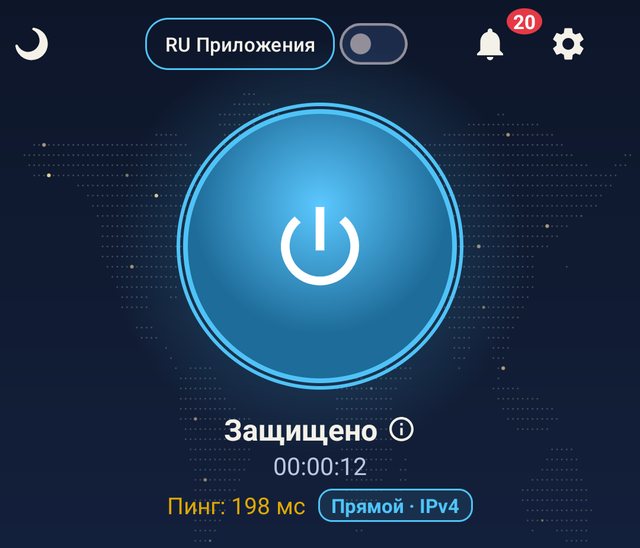
- The connection works as anywhere else. On Android without Google services the app showed Protected and the path Direct · IPv4, and an outside site that shows the visitor’s address saw our server in Poland, not the machine the emulator ran on. We switched country on the fly, and the address changed to our server in the Netherlands. The app’s log shows no crashes and no freezes.
- Sign-in and account. With an email or a nine-digit account number and a password; a Google account is not needed at any step.
- Messages arrive differently. Normally the phone learns about a new message — a reply from support, a payment confirmation — through Google services. Without them the app fetches messages itself: every five minutes while you are connected and, by our code, every six hours when you are not (we did not wait for that in the test). In the test it fetched nineteen messages by itself, and the notification appeared in the shade. There is no error on screen: the app switches to this mode quietly.
- Updates come from our site. The site build checks our own list of versions, not a store. We installed the previous version, and after signing in the app showed the Update available window with Later and Update. Then: Update, switch on Allow from this source once (Android asks only the first time), and confirm Update in the system window. The app updated, and the sign-in survived. Before installing, it checks the new file’s signature against ours.
- Mayak does not need Google services installed. There are third-party wrappers for Huawei that promise to bring them back. Mayak does not need them; we have not tested them and will not recommend them.
Keeping the connection alive in the background
This is the main thing an emulator cannot show. Huawei and Honor add their own battery rules on top of Android’s: the system closes apps that run in the background for long, and a secure connection can drop while the screen is off. What the vendors themselves advise — from Huawei’s help and Honor’s help. Names and places of these settings differ between system versions — go by meaning; search in Settings finds them by name.
- App launch. Find this section in Settings, turn off Manage automatically for Mayak and turn on Run in background.
- Battery optimisation. Take Mayak out of Battery optimization. This is Android’s own list, and the Remove the limit button in our app’s Connection check leads to it — if the app notices its background work is limited. The App launch section it does not open by itself: that one belongs to the vendor, and you have to go there by hand.
- Power saving mode. Huawei’s help advises turning it off too: Settings → Battery.
- Lock the card. On the recent apps screen, swipe Mayak’s card down. According to both vendors’ help, a locked app is not closed when the system clears background apps.
Why battery saving is the most common cause of “it disconnects by itself”, and how much of it is our fault, is broken down with numbers.
Check it on your own phone. An emulator will not replace one attempt on your Huawei and on your network. The account is created right in the app, and we ask for no payment details for the trial. A confirmed email opens the access — 3 free days. An email is optional: without one the trial is 1 day.
🍎 On iPhone Mayak works through the third-party Happ app — with the subscription link from your account. Happ is not in the Russian App Store; there INCY (publisher LLC ITDEV) works instead, checked on 22 September 2026.
A VPN on a Huawei tablet
Huawei tablets (MatePad and others) are in the same position as the phones: models released after May 2019 have no Google Play, and the system is EMUI, HarmonyOS 2–4 or HarmonyOS 5 and later. So the answers are the same too: on EMUI and HarmonyOS up to 4 the file from our site installs the same way, on HarmonyOS 5 and later it does not. Honor tablets are like Honor phones: check for the Google Play icon.
A caveat: we did not run Mayak on a tablet screen this time — the test was on a phone emulator.
What we checked
- That the emulator really has no Google services. On 24 September 2026 we started Android 15 from an image without Google services and listed every installed package: of 179, not one belongs to Google services or Google Play.
- That the file is the one our site serves. It was downloaded from
mayaknetworks.com/dl/app: version 0.7.33, 18,482,618 bytes, signed with our key,
CN=Mayak Networks Release. - Sign-in. The app signed in; the account creation screen opens, but we did not create a new account to the end on the emulator.
- Connection. The system Connection request window, then Protected and the path Direct · IPv4. The address an outside site sees changed from our machine’s to our server in Poland, and after a country switch on the fly — to our server in the Netherlands.
- The app’s log. No crashes, no freezes. About the missing Google services — only service lines of the kind “no Google services on the phone — the inbox works by polling”; nothing popped up on screen.
- Messages. The app fetched nineteen messages from the server by itself, the notification appeared in the shade, and the Messages section opened with them.
- Updating without a store. We installed the previous version 0.7.31: after sign-in — the Update available window, then the permission to install from this source and the system Update. Version 0.7.33 went in, and the sign-in survived.
- What is inside the file. Read from the file itself: it installs on Android 7.0 and later, and it carries engine parts for four kinds of processors, including the kind Huawei and Honor phones use.
- Other parties — from the source. Google’s explanation about Huawei models after 16 May 2019, Huawei’s statement on the Honor sale, the Pura 80 Pro specs on Huawei’s Russian site, and Huawei’s and Honor’s help pages on background apps — read on 24 September 2026, links are in the text.
What we do not know
We try to make sure nothing more can be read out of our text than is in it.
- How Mayak behaves on a real Huawei or Honor. The test ran on an emulator: it has neither Huawei services nor the EMUI and MagicOS battery rules. How long the connection holds in the background on a real phone, we did not measure — that is why the background advice comes from the vendors’ help pages and not from our measurement.
- Which windows the phone shows when you install the file. On the emulator we installed the file with a developer tool that shows no install windows; the permission window we saw only during the update. What your version of EMUI or MagicOS will ask, we have not seen.
- A different Android version and a different processor. The emulator is plain Android 15 on a desktop-type processor. Huawei and Honor may build on a different Android version, and the phone’s processor is different: the file carries the engine part for it, but that part was not the one running in this test.
- How often messages arrive when you are not connected. By our code, every six hours, but the battery system is not bound by that “every”, and we did not wait for it.
- Tablets. We did not run Mayak on a tablet screen this time.
- When Mayak will be in AppGallery and on HarmonyOS 5. We do not name dates. Today we are not there.
- Whether it will work for you. That depends on your network and can only be checked on your own phone — that is what the trial is for.
- When our own iPhone app comes out. It is in development and we do not name dates; on iPhone Mayak works through the third-party Happ app with the subscription link from your account. Happ is not in the Russian App Store; there INCY (publisher LLC ITDEV) works instead, checked on 22 September 2026.
Short answers
Which VPN is best for Huawei? One that installs without Google Play and works without Google services. The three questions that show this before you install are above; we do not name other apps and do not write rankings.
Which VPN should I pick for an Honor? First check whether the phone has Google Play. Recent Honor phones usually do, and then the choice is the same as for any Android phone — covered separately. If not, the same three questions as for Huawei.
Is there a free VPN for Huawei? We have no free-forever access. There is a trial on one device — 3 days after you confirm your email, no cardwithout a card; without an email — 1 day.
Where do I download a VPN for Huawei? Mayak — as a file at mayaknetworks.com/dl/app; it is the same file as in the Download section on the home page. The three install steps are above. Nowhere else: somebody else’s file with the right name cannot be checked.
Is Mayak in AppGallery? No. On a Huawei it installs as a file from our site.
Do I need to install Google services on a Huawei? Not for Mayak: on Android without them it installed, signed in and connected.
Huawei nova, P or Mate — is there a difference? The series does not matter. Two things do: whether there is Google Play and which system is installed. EMUI and HarmonyOS up to 4 accept the file, HarmonyOS 5 and later do not.
Why does a VPN on Huawei disconnect by itself? Most often battery saving closes it: Huawei and Honor add their own rules on top of Android’s. What to change is above.
The file will not install — what now? Look at what exactly the phone says: five install refusals we triggered live and wrote down.
Is there an iPhone app? Our own is in development and we do not name dates; on iPhone Mayak already works through the third-party Happ app with the subscription link from your account. Happ is not in the Russian App Store; there INCY (publisher LLC ITDEV) works instead, checked on 22 September 2026. What works on other platforms today is listed in the help centre.